


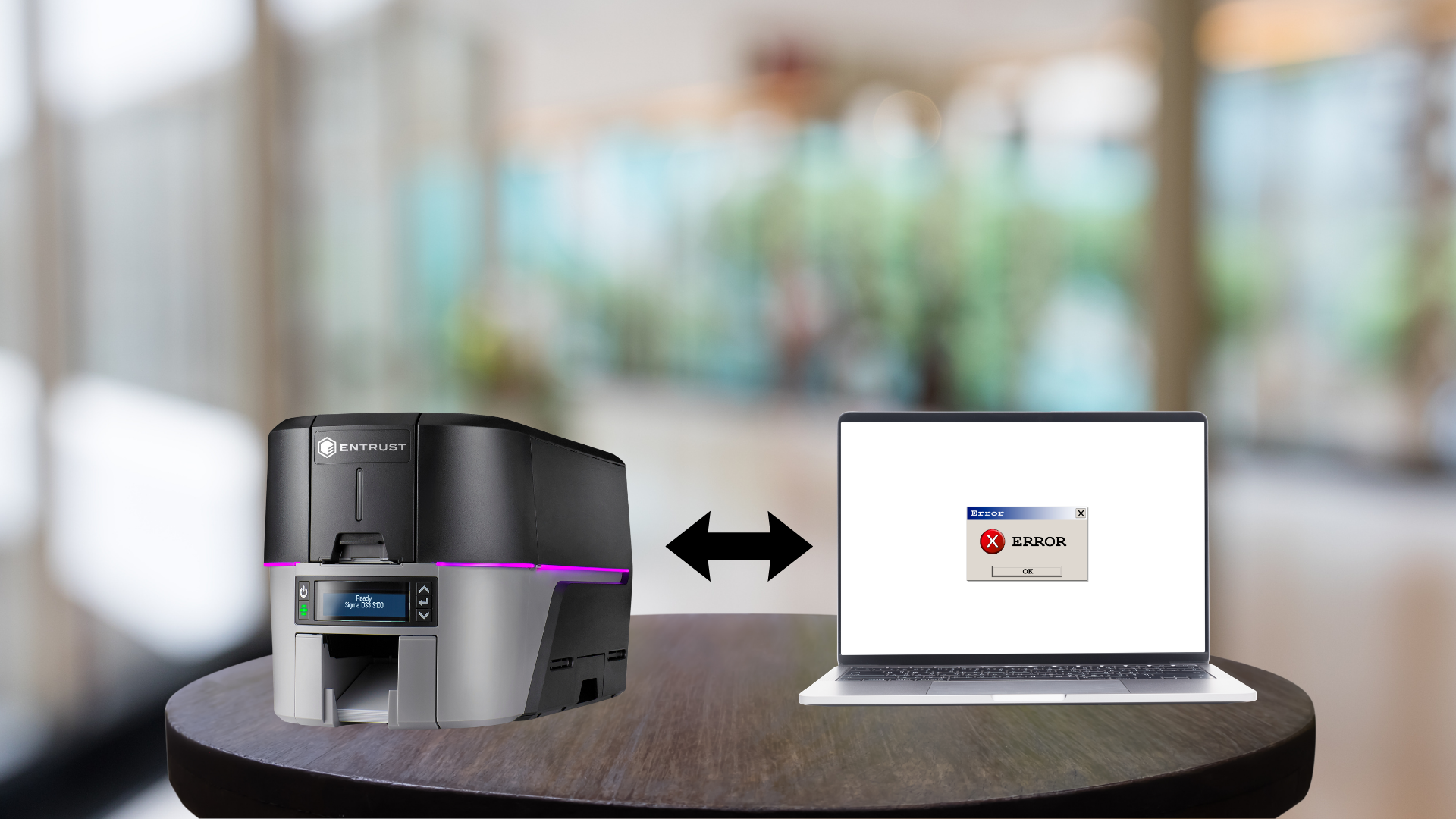
Modern ID card printers are often connected to a business, school, healthcare facility, or other organization’s network so multiple authorized users can access the printer. While network connectivity makes card printing more convenient, it can also introduce technical problems that prevent print jobs from reaching the printer.
When an ID card printer suddenly goes offline, fails to communicate with a computer, or repeatedly loses its network connection, the problem isn’t necessarily with the printer itself. Network settings, drivers, cables, software, and security policies can all contribute to connectivity issues.
Understanding the most common causes can help users determine whether they can resolve the problem themselves or whether professional technical support is needed.
1. Incorrect IP Address
One of the most common causes of network printer problems is an incorrect or changed IP address.
A networked ID card printer uses an IP address to communicate with computers and other devices. If the printer receives a different IP address from the network, computers that were configured to use the previous address may no longer be able to find it.
This can happen when the printer is configured for DHCP and the network assigns it a new address.
A technician or network administrator may need to verify the printer’s current IP address and update the computer or print server configuration if necessary.
2. Network Cable Problems
For printers connected through Ethernet, a damaged or improperly connected network cable can prevent communication.
Before assuming there is a problem with the printer, check:
- Ethernet cable connections
- Network ports
- Switch connections
- Visible cable damage
- Network activity lights
Replacing a damaged cable or moving the connection to another functioning network port may resolve the issue.
3. Wi-Fi Connectivity Issues
Some ID card printers or printer configurations may use wireless networking. Wireless connectivity introduces additional potential problems.
The printer may lose its connection because of:
- Weak wireless signal
- Network changes
- Incorrect Wi-Fi credentials
- Interference
- Router or access point problems
- Changes to wireless security settings
If the printer repeatedly disconnects, the network administrator should verify that the printer has a stable connection to the organization’s wireless network.
4. Firewall or Security Settings
Business networks often use firewalls and security policies to control communication between devices.
A firewall may prevent a computer from communicating with an ID card printer even though both devices are connected to the same network.
Recent network security changes can sometimes cause previously functioning printers to stop communicating.
If the printer worked previously and suddenly became inaccessible after a network or security update, the organization’s IT team should check whether firewall rules or security policies are affecting printer communication.
5. Printer Driver Problems
The printer driver acts as the communication bridge between the computer and the printer.
If the driver is outdated, corrupted, incorrectly installed, or configured for the wrong printer, print jobs may fail even when the printer is properly connected to the network.
Driver problems can occur after:
- Operating system updates
- Printer replacements
- Software changes
- Network configuration changes
- Driver updates
Installing or updating the correct manufacturer-supported driver may resolve the issue.
6. Incorrect Printer Port Configuration
Even when the printer has the correct IP address, the computer may be configured to communicate through an incorrect printer port.
For example, a computer may still be pointing to an old IP address after the printer’s network settings have changed.
Checking the printer’s configured network port and comparing it with the printer’s current network information can help identify this problem.
7. Network Changes
Organizations frequently update their networks as part of normal IT maintenance.
Changes to:
- Routers
- Switches
- VLANs
- IP address ranges
- DHCP settings
- Firewall rules
- Network security policies
can affect network-connected ID card printers.
If an ID card printer stops working shortly after an organization’s network infrastructure is changed, the network configuration should be one of the first areas investigated.
8. Printer and Computer Are on Different Networks
In larger organizations, different departments or devices may operate on separate network segments or VLANs.
A computer may be able to access the internet while still being unable to communicate with the ID card printer because the devices are located on different network segments.
In these situations, the organization’s IT team may need to review routing and network access permissions.
9. Print Spooler or Print Queue Problems
Sometimes the network connection is functioning correctly, but print jobs become stuck in the computer’s print queue.
A backed-up print queue can make the printer appear unavailable or prevent new jobs from being processed.
Clearing stalled print jobs and restarting the appropriate print services may resolve the problem.
However, if print jobs repeatedly become stuck, there may be an underlying driver, software, or communication issue that requires further troubleshooting.
10. Firmware or Software Compatibility
ID card printers rely on firmware and software to operate properly. In some cases, compatibility issues between the printer’s firmware, driver, operating system, or card issuance software can affect communication.
Keeping printer software and firmware appropriately updated can help maintain compatibility, but updates should be performed carefully and according to the manufacturer’s recommendations.
How to Troubleshoot an ID Card Printer Network Problem
When an ID card printer cannot communicate with a computer, start with the basics:
1. Check the physical connection – Verify that Ethernet cables and network connections are secure.
2. Check the printer’s network status – Confirm that the printer is connected and determine its current IP address.
3. Check the computer’s printer configuration – Make sure the computer is configured to communicate with the correct printer and network address.
4. Check the driver – Verify that the correct printer driver is installed and functioning properly.
5. Review recent network changes – Determine whether the problem started after an IT, firewall, router, or network configuration change.
6. Check the print queue – Clear stalled jobs and verify that new print jobs can be processed.
7. Contact IT or a qualified technician. – If the issue continues, professional troubleshooting can help determine whether the problem originates with the printer, computer, software, or network.
When Should You Call for Professional Support?
Not every network problem requires printer repair. In many cases, the printer itself is functioning properly and the issue is related to the organization’s network or computer configuration.
However, persistent connectivity problems may require professional diagnostics to determine the source of the issue.
Professional support can be especially valuable when:
- The printer repeatedly goes offline
- Multiple computers cannot connect to the printer
- Network configuration changes haven’t resolved the issue
- Driver or software problems continue
- The printer has multiple recurring errors
- The printer requires additional configuration or integration
Getting the problem properly diagnosed can help prevent unnecessary equipment replacement when the printer itself may still be perfectly functional.
Keep Your ID Card Printing Operation Running
Network connectivity problems can be frustrating, especially when an organization relies on its ID card printer every day. The good news is that many connection issues can be traced to common causes such as IP addresses, network cables, drivers, firewall settings, or configuration changes.
When basic troubleshooting doesn’t resolve the problem, professional ID card printer support can help identify the underlying issue and get the equipment communicating properly again.
At ID Card Repair, technical support, diagnostics, integration, and repair services can help organizations troubleshoot problems and keep their ID card printing equipment operating reliably. Contact us today to get expert assistance and keep your ID card printing operation running smoothly.