


If you rely on an Evolis Primacy 2 printer for creating professional ID cards, keeping it in top condition is essential for consistent, high-quality prints. One of the key maintenance tasks is replacing the ribbon when it runs out. The process is simple, but following the correct steps ensures clear prints and smooth printer operation. This guide will walk you through replacing the ribbon in your Evolis Primacy 2 printer.
Step 1: Get Ready for the Ribbon Change
- Turn On the Printer: Make sure your printer is turned on and ready.
- Choose the Right Ribbon: Evolis offers a variety of ribbons, including YMCKO and monochrome options. Confirm you have the appropriate ribbon for your printing needs.
Step 2: Access the Ribbon Compartment
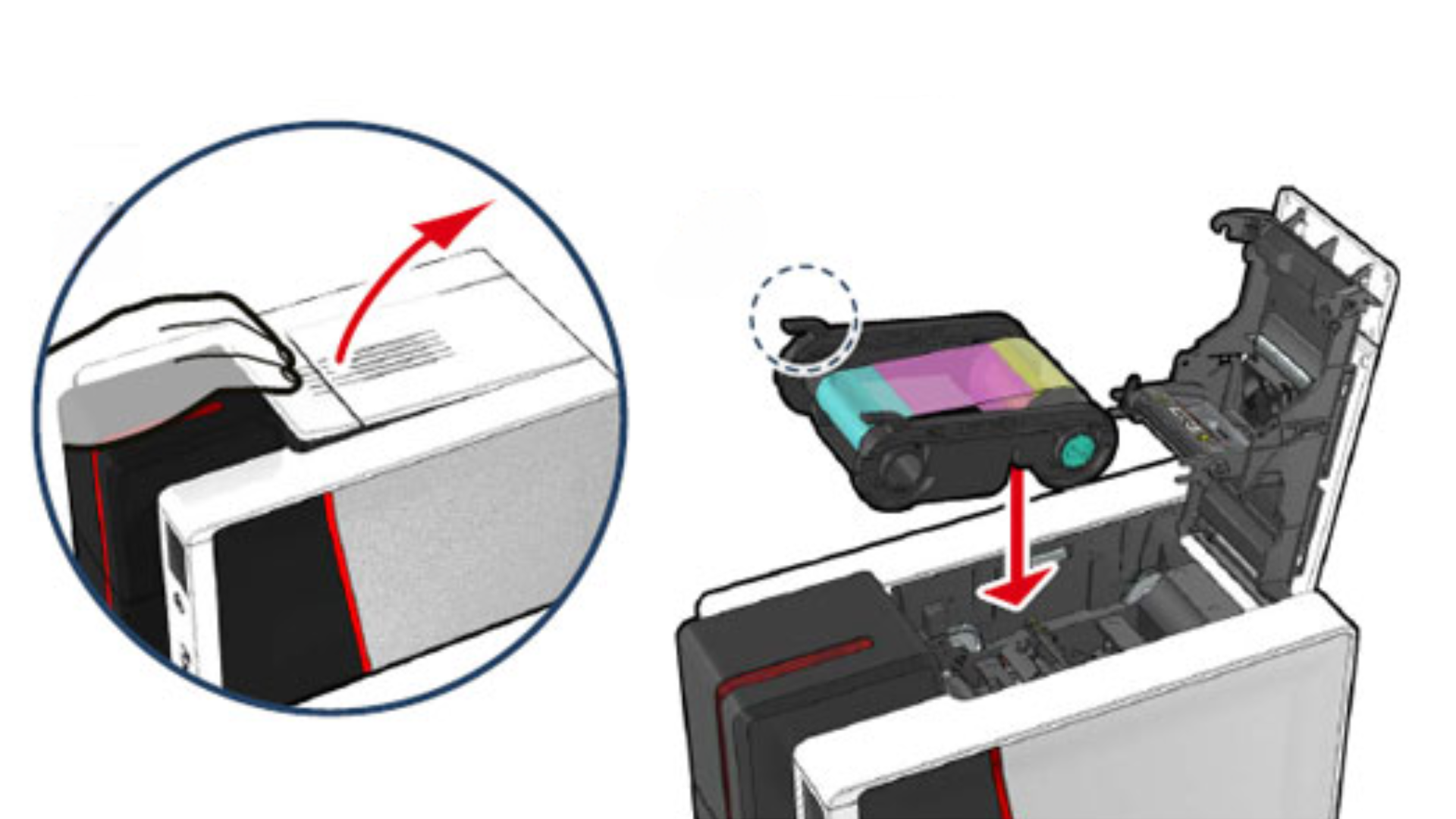
- Open the Printer Cover: Locate the hatch at the top of the printer. Press the latch to release the cover and lift it smoothly. This will reveal the ribbon compartment.
Step 3: Remove the Used Ribbon
- Take Out the Old Ribbon: Carefully remove the existing ribbon cartridge from the compartment.
- Dispose of the Ribbon Properly: Check your organization’s policy for disposing of used ribbons.
Step 4: Install the New Ribbon
- Open the new Ribbon: Remove the new ribbon from its packaging, taking care not to touch the ribbon surface. Oils from your hands can damage it.
- Insert and Align the Ribbon: Place the new ribbon cartridge into the ribbon compartment. Ensure the ribbon is taut and properly aligned across the print area. If it’s slack, gently turn the take-up spool to tighten it.
Step 5: Close the Cover
Once the ribbon is in place, close the printer cover by pressing it down until it clicks. The printer will automatically detect the new ribbon and adjust its settings.
Step 6: Test the Installation
- Perform a Test Print: Use the printer software to print a test card or start a new print job. Check the print quality to ensure everything is functioning as expected.
Tips for Maintaining Your Evolis Ribbons
- Use Genuine Ribbons: Always use authentic Evolis ribbons to ensure compatibility and protect your printer.
- Store Ribbons Properly: Keep ribbons in a cool, dry place to preserve their quality.
- Track Ribbon Usage: Most Evolis ribbons have a chip to monitor usage, helping you plan replacements before running out.
Need Help? Contact Us!
Replacing the ribbon on your Evolis Primacy 2 printer is quick and easy, but if you encounter any issues or have questions, we’re here to help. Regular maintenance, like timely ribbon changes, keeps your printer running efficiently and ensures your ID cards look professional every time. Contact us today for assistance or to learn more about Evolis printer supplies.