


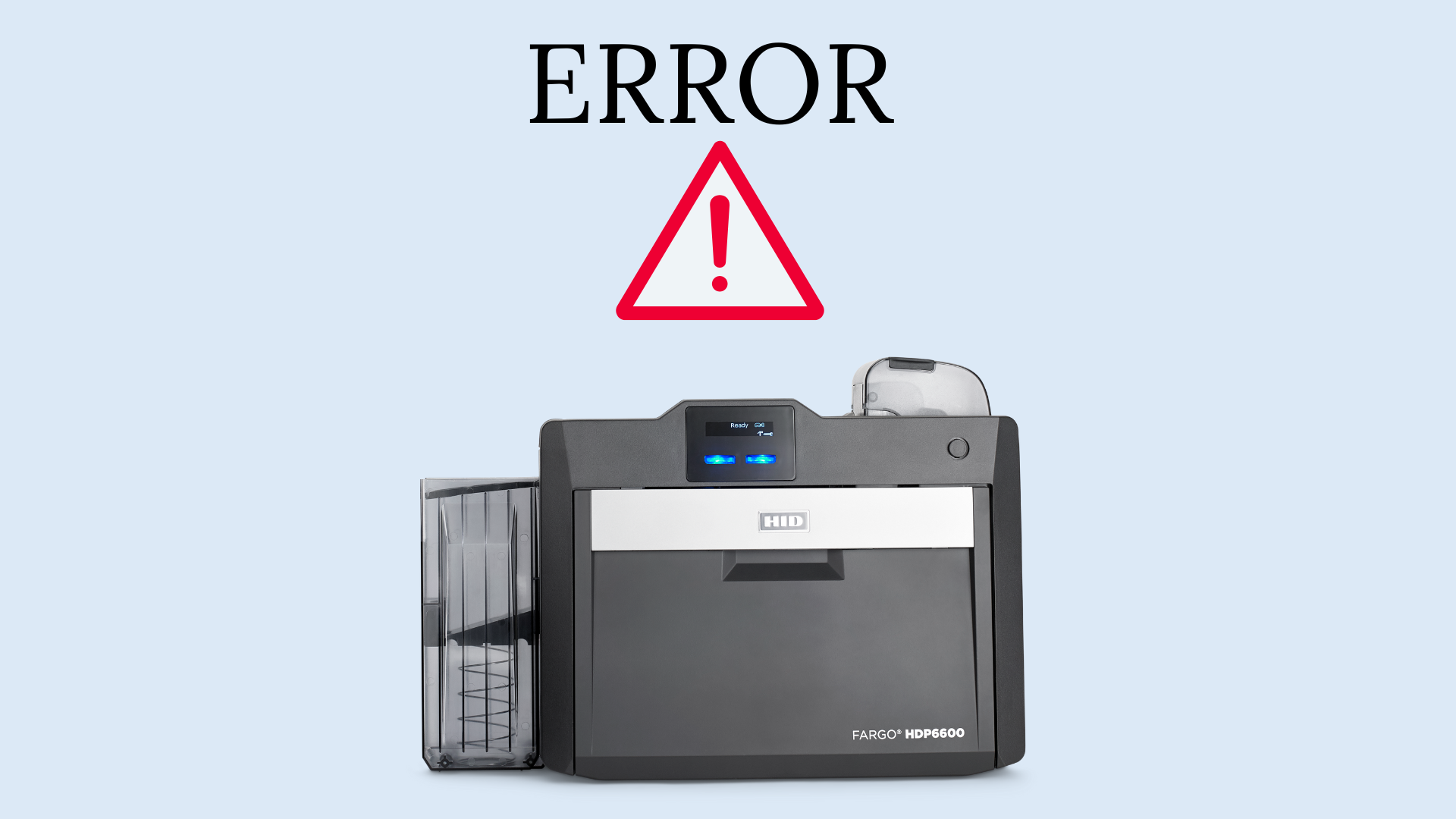
ID card printers are essential tools for businesses and organizations, producing everything from employee badges to access control cards. But when your printer stops working or produces poor-quality cards, it can cause frustration and delays. If you’re wondering, “Why isn’t my ID card printer printing?” here’s a guide to some of common issues and troubleshooting tips to get it up and running again.
1. Printer Not Turning On
This may seem obvious, but the first thing to check is whether your printer is receiving power. Ensure the power cable is properly connected to both the printer and the power outlet. If it still doesn’t turn on:
- Try a different outlet to rule out a power supply issue.
- Check for blown fuses or damaged power cords.
- Examine the power switch to ensure it’s functional.
If none of these fixes work, the power supply unit inside the printer may need replacement.
2. Printer Offline or Not Recognized by the Computer
Your computer might not recognize the printer if there’s an issue with the connection. Here are some possible reasons:
- Check the USB or network connection: Ensure that the USB cable is securely plugged in or the printer is properly connected to the network.
- Update the drivers: Outdated or missing drivers can prevent the printer from communicating with your computer. Check the manufacturer’s website for the latest drivers and firmware.
- Reinstall the printer: Sometimes, removing and reinstalling the printer can resolve connection issues. Go to your computer’s settings, remove the printer, and then add it again.
3. Card Jammed in the Printer
A card jam is one of the most common reasons for a printer to stop working. This can happen when a card is loaded improperly or if there’s debris inside the printer. Here’s how to fix it:
- Turn off the printer before attempting to remove the jammed card.
- Open the printer cover and gently remove the stuck card.
- Inspect the card path for dust or debris, which could be causing the jam. If necessary, use a cleaning kit designed for your printer model to clean it out.
4. Poor Print Quality
If your cards are printing but the quality is subpar, the issue might be with the print settings, ribbon, or the cards themselves. Here are a few things to check:
- Check the ribbon: If the ribbon is low, expired, or improperly installed, it can affect print quality. Replace the ribbon if necessary and ensure it’s correctly seated in the printer.
- Inspect the cards: Dirty, scratched, or incompatible cards can lead to poor print quality. Always use clean, compatible cards that match the printer specifications.
- Update printer settings: Ensure that the print resolution settings are appropriate for the type of card you’re printing. Sometimes, adjusting the settings can resolve quality issues.
5. Printer Stuck in the Middle of a Job
If your printer stops mid-print or freezes, it could be due to a software or hardware malfunction. Here’s what you can do:
- Restart the printer and computer: A simple restart can clear any software glitches.
- Clear the print queue: If the print job is stuck, try clearing the queue and starting over. You can do this by going to your computer’s print settings and deleting the current jobs.
- Check for firmware updates: An outdated firmware version could cause freezing issues. Visit the manufacturer’s website for updates.
6. Ribbon Breaking or Tearing
If the ribbon keeps breaking, there could be several factors contributing to the issue:
- Tension settings: Some printers allow you to adjust the tension of the ribbon. If it’s too tight, it could break. Check your printer manual for instructions on how to adjust it.
- Worn rollers: The rollers that move the ribbon through the printer could be worn or dirty. Clean or replace them as needed.
- Incorrect ribbon type: Make sure you’re using the correct ribbon for your printer model. Incompatible ribbons may cause issues with performance and lead to breakage.
7. Frequent Cleaning Needed
If your printer constantly requires cleaning, it may be exposed to too much dust or debris, which can interfere with its operation.
- Ensure a clean environment: Keep your printer in a clean, dust-free environment to minimize the need for frequent cleanings.
- Use the proper cleaning tools: Most manufacturers offer cleaning kits specifically designed for their printers. Using these will ensure a thorough and safe cleaning process.
8. Error Codes and Warning Lights
If your printer displays an error code or warning light, refer to the user manual for specifics on what the code means. Common issues that trigger warning lights include:
- Low ribbon supply
- Card feeder empty or jammed
- Incorrect card thickness
Contact us today
When your ID card printer isn’t printing, it’s usually a fixable issue, whether it’s a power supply problem, card jam, ribbon issue, or a need for updated drivers. By following these troubleshooting steps, you should be able to identify the issue and resolve it quickly.
If the problem persists after trying these solutions, you might need professional assistance or a technician to look into the problem further.
By keeping your ID card printer in top condition and following regular maintenance, you can prevent many of these issues from happening in the first place, ensuring smooth operation and high-quality print results every time. Contact us today to speak with an expert if you are still having problems with your ID Card Printer.